
The transition of an HP BIOS to legacy mode raises a specific technical question: what features are lost or retained depending on the chosen boot mode? The answer depends on the generation of the hardware, the targeted operating system, and the disk partitioning scheme. Comparing the two boot modes allows for a real assessment of the implications before any manipulation.
Native UEFI or legacy on an HP PC: what each mode activates or blocks
The choice between UEFI and legacy is not limited to a menu preference. Each mode conditions access to system features and deployment tools.
| Criterion | UEFI Mode (GPT) | Legacy Mode (MBR) |
|---|---|---|
| Secure Boot | Active (required for Windows 11) | Automatically disabled |
| BitLocker / Device Encryption | Functional | Unavailable until reverting to UEFI + reinstalling GPT |
| Autopilot / Intune / MDT Deployment | Officially supported | Not supported |
| USB Boot for Older OS | Sometimes incompatible | Compatible (Windows 7, 32-bit Linux distributions) |
| Partitioning Scheme | GPT required | MBR required |
| Availability on Recent HP (post-2023) | Always present | Often removed from firmware |
On several HP ranges, notably Pavilion and ENVY since 2022, enabling legacy automatically disables Secure Boot. This deactivation prevents BitLocker from functioning by default. Reverting to native UEFI then requires a clean installation with a disk partitioned in GPT.
For those wishing to switch the HP BIOS to legacy mode, this constraint on encryption must be evaluated before any switch, especially on a machine containing sensitive data.
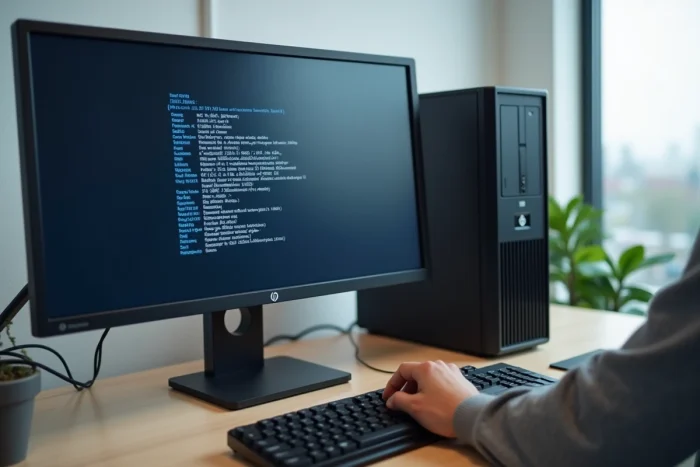
Recent HP Machines: legacy mode no longer exists on certain models
HP laptops shipped exclusively with Windows 11, particularly those released from late 2023, have a specific feature. The firmware now only offers native UEFI mode. No option to switch to legacy appears, including in the advanced or hidden BIOS menus.
This removal stems from Microsoft’s certification requirements for Windows 11. Certified devices must operate in UEFI with Secure Boot enabled. HP strictly applies this policy to its recent consumer ranges.
Before looking for the legacy option in the configuration utility, one must check the generation of the hardware. On a 2024 model, the absence of this option is neither a bug nor a hidden setting. It is a design choice imposed by the manufacturer.
Identifying the presence of legacy mode in the HP BIOS
Accessing the HP BIOS configuration utility is done by pressing a specific key during the computer’s startup, usually F10 or Escape. Once in the interface, the boot menu (Boot Options or System Configuration) indicates whether the “Legacy Support” option exists.
- If the line “Legacy Support” appears with an Enable/Disable choice, switching is possible
- If only “UEFI Native” is displayed without an alternative, the firmware does not support legacy mode
- On some models, an administrator password must be set before the legacy option becomes accessible
Consequences for deployment and HP management tools
Modern deployment tools, such as Windows Autopilot, Intune, and network imaging solutions MDT or ConfigMgr, only officially work in UEFI mode with a GPT disk. Switching an HP PC to legacy effectively excludes the machine from these centralized management scenarios.
For a corporate IT environment, this limitation makes legacy mode unsuitable for current workflows. Installation must be done manually, with a bootable USB key prepared in MBR, without the possibility of automatic enrollment.
However, legacy mode remains relevant in a specific case: the installation of an older operating system that does not support UEFI. Windows 7 or certain 32-bit Linux distributions require booting in legacy mode to function on HP hardware.
Precautions before switching the HP BIOS to legacy
The manipulation itself takes a few minutes, but its consequences on the existing system can be significant if not anticipated.
- Backup all data before changing the boot mode, as changing the partitioning scheme (GPT to MBR) involves formatting the disk
- Disable BitLocker or Device Encryption if these features are active, to avoid disk locking upon reboot
- Prepare a bootable USB key compatible with legacy mode (formatted in MBR, with the appropriate system image)
- Note the current BIOS settings, as restoring default values will revert the machine to UEFI and may make a system installed in MBR impossible to boot

Reverting to UEFI after a legacy installation
The rollback is not straightforward. A disk partitioned in MBR does not boot in UEFI mode. The procedure requires either converting the disk from MBR to GPT (possible with Microsoft’s mbr2gpt tool, under certain conditions), or a complete reinstallation of the operating system.
This relative irreversibility explains why switching to legacy must be considered a significant technical choice, not just a setting that can be freely toggled.
Legacy mode on an HP PC meets a specific need for compatibility with older systems. On recent machines, this option is gradually disappearing from the firmware. Before any modification, backing up data and checking the compatibility of the target system remain the two steps that determine whether the switch will proceed without incident.